Leica M8 – Michael Kamber’s Iraq Field Test

I’ve always liked to use rangefinder cameras, particularly when photographing people and events. Of course they had their drawbacks, particularly some of the cheaper Soviet Leica copies I started with in the early 70s, where viewfinders sometimes seemed to bear little relation to the image.

But once I’d bought my Leica M2 things were fine, and then I added a Minolta CLE, perhaps my favourite ‘Leica’ of all. Eventually I was moved by the need for a slightly more modern design, and along came Konica with a design that actually had auto exposure that worked.

Of course I also needed SLRs for their extra flexibility and the ability to use longer lenses. Although in extremis I’d use the excellent 90mm f2.8, Leica’s forte was at 35mm and below, with my favourite (but often maligned) Summilux 35 f1.4 a superb tool in low light, and Voigtlander providing some excellent and cheap super wide angles.

Then came digital, and for various reasons I had to switch to using an SLR system, Nikon or Canon. At the time the Nikon D100 had just arrived and seemed the best of the reasonably affordable cameras – though it’s poky dim viewfinder was a real pain. Later came the D200 – the first digital I liked using – and now the improved D300, but all along I’d been hoping for a digital rangefinder I could warm to and use.

Epson were the first, and it wasn’t bad, but I felt sure that Leica would come up with something better, and waited for the M8. Eventually it came, got some good write-ups – though there were a few minor problems noted, and after a while someone noticed its problems with IR and we had the filter fiasco, but the problem didn’t seem insurmountable.

So finally, feeling a little rich after a few good months I bought one in Spring 2007. Ten days later I lost the contract that had provided more than 50% of my income for the past few years.

It was a bad start, but I was actually more worried by the problems I was having with the M8, particularly since none of my lenses were coded so the camera could recognise them. I made the mistake of using the M8 on a job and then spent hours in Photoshop selecting parts of the image and removing the purple.

In time I worked out how to get usable results from the camera most of the time. I’ve taken a few decent pictures with it, mainly with the Summilux, which, according to Leica is not compatible with the camera. Using the free ‘Cornerfix‘ I can even get reasonable colour with the Voigtlander 21mm (with the IR filter in place.)

I’ve not yet come to like using the M8. Compared to the Minolta/Konica cameras it seems an imprecise and blunt instrument, unreliable and with inaccurate framing. Colour balance and exposure control are hit and miss, and processing the RAW files is a real pain compared to those from the Nikon. It seems hardly usable above ISO 640 due to noise, although to be fair the results at ISO 320 can be exceptionally sharp and detailed – certainly a little superior to the D200 in that respectg.

I have other problems with the camera, even using it for my relatively undemanding needs. It is good not to have to carry a camera bag when I take it out – a spare lens tucked in a pocket and the camera – at least when not in use – hanging around my neck are all I need, but more often I’m deciding to pick up the bag with the Nikon gear when I have to choose, even if it can be a pain to carry it around all day.

What prompted me to write this was reading the warts and all thoughts of a photojournalist trying to work in Iraq with an M8, Michael Kamber’s Leica M8 Field Test, Iraq.

This is an honest and detailed account of his experiences with the camera – and illustrated by the results. On the opening page he says it is “a detailed look at my experiences with the M8, most of which have been negative. Please keep in mind that there are many other photographers who like the M8.”

You can also see Kamber‘s work on his web site, and on the Digital Journalist site

I’d love to find out how to really like my M8, but it’s proving rather hard work.

It happens…

One day it’s going to happen to you, if it hasn’t already. You turn on your computer and try to access your image files, but all you get is an error message.

My turn came on Saturday. One of the large external hard drives on which I store images had given up the will to live, taking with it around 60Gb of RAW files.

I tried all of the simple (and free) ways to restore the disk and retrieve the data, which I’m sure is still there on the disk, but in the end I gave up. Fortunately I think I have a backup of everything (or almost all) that was on it, and as I type I’m copying the files in the background to be sure I’ll be protected in the case of another failure.

Few things in life are sure – but there is a moral in this. One thing you can be sure of is that all systems will fail – in time.

I’m fortunate – or well prepared – thanks to an accident in the first few weeks after I switched to digital, which made me embrace the idea of redundancy.

Earlier in the week I was reading a sorry series of messages for help on an on line forum from a photographer who had suffered a similar catastrophe following the failure of his RAID backup system. He’d relied on the limited redundancy built into this, which meant the data could recover from a hard drive failure, but something else – probably a controller failure – had gone wrong and the array was now unreadable.

I hope there will be a happy ending for him, but it may require the four-figure assistance of a specialised data retrieval service to get his work back.

Off-Line Storage

For some years many people were telling me that external hard-disk storage was the safest way to store my files. As I’d already had a problem with it, I wasn’t entirely convinced. Now all the experts tell me that on-line storage is the way to go, with services offered by various companies at various prices. Some of these companies have been very keen to tell me of all the safeguards that are in place to ensure my data is safe, and it sometimes seems convincing.

I think they provide a useful service, but I don’t feel I want to rely on them. Conditions change, companies go out of business, and of course at some point their services may become too expensive for me.

So although I will increasingly be storing work on line – if only on various agency web sites – my main storage will continue to be on a do-it-yourself basis.

Redundancy the Key

There is much to be said for keeping things as simple as possible, but always bearing in mind the principle of redundancy. As soon as my images leave the card or camera I want to have at least TWO copies on fully independent media.

Lightroom has a useful option to make a backup as it imports your images, and I make use of this, with one going to one of the drives on my second hard disk and the other to an external USB hard drive.

Write Once Media

There is also a great deal to be said for using media that can be written to once only and do not allow deletion, such as CD and DVD. Much has been written about the problems of using these media, but they still seem a good medium-term solution.

The only CDs I’ve had a problem with are early ones written using UDF. The good-quality disks I use are, according the manufacturer, good for a hundred years, though that doesn’t necessarily mean the data will be, but nor will the photographer last that long. I write them disk at once, finalise the disks, verify every bit, label with a permanent CD marker pen and store them in hanging inert plastic files in cases in the dark.

CDs don’t hold enough files, so I’ve now moved to using DVD in the same way. I’ve been writing these for several years now and have yet to have a problem in accessing a single file. But of course it will happen one day.

Once I have a copy of my files on DVD (as well as on the external hard drive) I can delete the copy of the raw file on my computer hard disk, making space for new work.

At the moment I keep all of the developed files (anything from 1 in 3 to 1 in 20 of what I shoot) as full size ‘quality 11’ jpegs on another hard drive in my computer system, but as this fills up I’ll need to transfer older work to DVD and external drive.

External Hard Drives

Apart from this, I also use USB hard drives, which can easily be attached to any computer I want to use. Currently I’m using Western Digital 500Gb drives which cost around £60. Its a simpler (and cheaper) solution than many, but one that gives a reasonable level of security – and would be even better if I could keep those DVDs at another location.

While writing about this, The EPUK newsletter arrived, pointing me to a useful detailed article by AP photographer Ben Curtis on his SnapperTalk blog on his equipment for archiving. Its a good example of a rather more involved (and expensive) approach than mine, at the centre of which, attaching to his Mac is a very nice looking SilverSATA II running a RAID 1 two disk mirroring array, while he also makes backups on another hard disk.

Key Points Of Possible Failure

However you decide to look after the future of your images, there are some key points of possible failure to consider:

  • hard disk and controller access
  • power failures (which can damage hardware and corrupt files)
  • human failure
  • theft, fire, flood
  • obsolescence

Notes
UPS
We should all be using uninterruptible power supplies to let our systems shut down gracefully in the event of a power cut. Its something I’ve never quite got around to doing on my home systems, though I implemented them at work. One of the few advantages of notebook computers is that they keep on working when the power goes.

Obsolescence
There are so many CDs and DVDs in existence that readers for these media are likely still to be in production for quite a few years after these stop being a standard – in much the same way as we can now buy decks to play our EPs and LPs and record those to current media.

So although at some point it may be necessary to move data away from these media. Hard disk standards are also changing, and USB or Firewire will become technologies of the past – just as few computers now have serial ports.

Better Digital 2

The second instalment of a short series of tips on digital images – see also Better Digital 1

Image size and Resolution

Image size is measured in pixels. When supplying images you will seldom if ever be told what size is needed. A rough guide:

· Full page 3000×2000 px or larger
· Half page 2400x1800px or larger
· Quarter page 1800x1200px or larger

Always set the resolution of images at 300 dpi unless specifically asked to use another figure. Most editors etc have no idea what resolution means, and few seem to know it can readily be changed. Much of the confusion comes about because in Photoshop the ‘Image Size’ dialogue box can be used to do two rather different things. It can change the image resolution and it can ‘resample’ your images. Resampling alters the number of pixels in the image, making it larger or smaller (with photographs you will always want to use either ‘bicubic’ or ‘smooth bicubic’ resampling in Photoshop, although other software offers algorithms that may at times give better results.)

Changing resolution doesn’t actually alter your images, but simply changes a few bytes in the file that contain the resolution figure, which is an instruction to the output device about how to work out the size to make a print. Make sure you un-check the resample box in Photoshop when changing resolution – or you will also resample and thus alter your image size.

Various programs claim to work magic when resizing your images, and over the years I’ve tested and reviewed most of them, usually getting a free copy. My conclusion was that for any normal purposes you don’t need them, but that some, particularly SizeFixer will give a better result if you need to blow up a small image for a giant print – and have a very long time to wait for the result.

Image Quality and Format

Unless specifically asked for TIFF files you can supply JPEG. If awkward customers particularly want TIFFs you will find no problem in converting high quality jpegs to tiff format in Photoshop and sending these!

For supply on CD I would normally use Jpeg quality 11 in Photoshop or 92% in Lightroom
For e-mail, I cut down the file size depending on the page size requested as above and supply at quality 9 or 10.

TIFFs should be supplied uncompressed, in PC byte order. All files should have the appropriate colour profile, sRGB or Adobe RGB, embedded in the file.

Sharpening
Images for reproduction should normally be supplied unsharpened, or only with very slight sharpening (use ‘unsharp mask’ or ‘smart sharpening’ or a specialised sharpening plug-in – my favourite is Focalblade. In Lightroom I always apply ) There should be no visible sharpening artefacts.

You should leave it to the printer (or whoever is preparing work for the press) to apply appropriate sharpening for the printer and output size.

If supplying images for presentations or web use, sharpen these appropriately for use on screen. Again there should be no visible artefacts.

Black and White images
Black and white images are also usually best supplied as RGB files, using the appropriate colour profile, sRGB or Adobe RGB, embedded in the file.

If you know your colour images are going to be used as black and white, it is best to do the conversion yourself. Photoshop offers various ways to do this, and one of the simplest that gives you decent control is the ‘Channel Mixer.’ Lightroom and CS3 have a superior ‘Grayscale Mixer’ and plugins such as B/W Styler give ease of use and special effects as well as similar control for users of earlier versions of Photoshop.

If your black and white images are to be printed as colour, you can produce richer results by the use of small amounts of colour in highlights and shadows – as we used to produce by selenium and other toning methods.

CMYK
Normal colour printing uses the 4 inks Cyan, Magenta, Yellow and blacK, and the printer needs images that are separated into these four colours. However this is a highly technical process and depends on the inks, printer and paper, and it it usually best to supply files as Adobe RGB (or possibly ECI-RGB for European printers.)

If you have to convert to CMYK, you should try to find out from the printer the appropriate CMYK colour space to use, such as SWOP Coated V2 CMYK.

Metadata
Never let any file leave your hands without appropriate metadata. The proposed ‘orphan works’ legislation makes it even more essential to ensure as a minimum that your name, copyright details and contact details are included.

Metadata includes both EXIF data and IPTC data. Cameras write EXIF data into the file on every image that you take, but scanned images don’t have it. Some cameras enable you to write a comment into every file – and mine is my copyright notice. However most software seems unable to read it.

IPTC stands for International Press Telecommunications Council. IPTC data is written into the image file, either as an IPTC header, or using the Adobe XMP format. You can download an IPTC metadata panel to add to recent versions of Photoshop (CS and later.) Some older software cannot read the XMP data, but this is now the standard format.

The uploading module in Lightroom and similar software makes it very easy to set up presets for regularly used metadata (such as photographer, copyright, contact details etc) and also add keywords during the uploading of batches of images from memory cards. You can also easily add headline, caption, country code, date etc.

Workflow
Workflow is a consistent series of steps that you carry out on each image. Mine relies on Adobe Lightroom and can be summarised:

  • Import – copies to hard disk, makes backup, adds keywords and other metadata, adds to image catalogue
  • Selection – deletes unwanted images, gives others a rating (keep, process, etc)
  • Processing of selected images – adjusts exposure, brightness, curve, removes dust, red-eye etc,contrast, reduces noise, sharpens, chromatic aberration, vignetting etc (some handled by presets, some automatic, other image specific)
  • Output – writes files of preset size, quality, colour space etc for particular usage to selected locations

Recommended Software

PC Users: Adobe Lightroom
MAC Users: Adobe Lightroom or Apple Aperture

A very few selected images will need local manipulation in a program such as Photoshop. A good cheaper alternative that can do virtually everything most of us need is Photoshop Elements. There are other programs, but these are so commonly used by photographers that they are usually the best choice.

Other RAW conversion software may sometimes give better results than these, although the differences are generally not great. But none offer the ease of use and in particular the ability to catalogue your images. For Nikon cameras, the ultimate results seem to come from the Nikon Capture NX software, but its a pig to use compared to Lightroom.

I routinely process everything in Lightroom, writing full-size jpegs at quality 92 of selected images – that can be resampled if necessary if I need larger files for a particular purpose – or even converted to TIFF if necessary.

I run a second selection on these results and resize and convert to sRGB for web use, using ACDSee Pro (I got a free copy of this, but had previously bought it as my general purpose image viewer.)

Those few images when I want a high quality print – perhaps for exhibition use – I’ll try using Capture NX, and see if I can get a better result. Then I’ll do a little tweaking in Photoshop before either printing or sending out for printing.

Some free/cheap software for PC:

Raw Therapee
This looks excellent for converting RAW files to jpeg, giving results on the few images I’ve tried as good as the most expensive software. Where it seems to miss out is in workflow and speed.

PTLens
A dirt cheap plug-in for Photoshop (it can alsobe run standalone) that, when I tested it, out-performed a commercial program costing over ten times as much. It automatically corrects pincushion or barrel distortion and has the great advantage that it can work for any lens on your camera. If you have a lens that isn’t already covered you can take some suitable pictures and get it added.

Irfanview
This is a good file viewing program that also allows you to do some basic image correction, as well as allowing you to use some Photoshop plugins. It is free for private, non-commercial use and very cheap for business use.

There may at some point be a Better Digital 3 in this series – but don’t hold your breath!

Better Digital 1

The first in a short series on getting the most out of digital images

I went to a photographers meeting a couple of weeks ago where pictures taken by around 20 different photographers (including myself) were all projected. Virtually all of them were good pictures – and most of the photographers were managing to make a living from photography, but technically I felt a number were letting the people who took them down in various fairly simple ways.

Back in the darkroom age, most photographers either learnt to make at least halfway decent black and whites or, more often once they started to make some money, had their work printed for them by a decent printer. With colour, for publication we largely shot on slide film and accepted the results from the lab on our Ektachrome or whatever, handing the trannies in for publication.

Now, most publications will no longer accept prints or slides and expect digital, but there are still quite a few photographers who haven’t yet really learnt how to get the most of of what they shoot on digital.

In most respects, digital has had the result of increasing technical standards compared to film. Certainly in low light we can produce pictures with a technical quality that is way better than film. But where we used to rely on labs to get things right, we now have to do it ourselves. So here is the first part in a series with some simple advice for photographers.

Monitor

Probably you’ve stood at some time in an electrical shop looking at the same programme displayed on a whole range of different TV screens and noticed the differences in colour, brightness and contrast between them. All of them are getting the same input signal, but may produce very different pictures. Computer screens are not a lot different (especially as we move to digital TV) and your image file may display very differently on your own screen to than when viewed by an editor or projected onto a screen. Those pictures with a nasty yellow cast may have looked perfect on someone’s notebook screen.

If you work with images it is worth buying a good screen to display your pictures. Unfortunately few if any notebooks come with particularly good screens – and a really decent screen for editing your pictures can easily cost as much as a notebook.

At home I use an Eizo monitor. It cost about as much as the large box by my feet that sends it a signal, but was worth every penny. Away from home I use an Acer notebook, and the images don’t quite look the same.

Hardware Calibration

Although the notebook screen hasn’t got anything like the picture quality of the expensive Eizo (or the remarkably good ancient but fairly massive Iiyama cathode ray screen I still also use) my pictures display in a reasonably similar fashion on all three screens. And I can be confident that any editor etc who knows what they are doing will also see something pretty similar. My confidence comes from regular calibration with a suitable hardware device, in my case a Pantone (GretagMacbeth) eye-one (i1), now replaced by an improved model.
You can get by without such a device – just as you can get by on a laptop screen – and your results may well be ok, but they will not be optimum. Particularly if you want to make your own prints, the better monitor will make it easier to get predictable results.

If you can’t afford a hardware calibration device, there are some web sites that have useful pages to make a rough check on some aspects of your monitor, and you may well be able to set up your monitor roughly using these and the controls on your monitor. Usually you should set the colour temperature to 6500K and use Gamma 2.2 (both on Mac and PC.)

Camera

If you are serious about photography then you will normally be shooting on a DSLR camera with at least a “4/3” sensor, more probably one roughly half the size of a normal 35mm film frame or roughly the same size. Compact cameras (except the latest Sigma DP1) have smaller sensors, usually smaller than a fingernail. Although some of these perform near miracles, they still cannot compare for resolution and image quality with the larger sensors, and at higher ISO the noise becomes excessive.

RAW vs Jpeg

As well as a decent camera – and of course a decent lens – you also need to learn how to use it. Test after test has shown that every camera that has both RAW and Jpeg modes can produce better images when shooting RAW. Almost always there is greater dynamic range but even more important is the flexibility to alter and enhance images that RAW processing provides. The difference is in some ways similar to the difference between using colour neg and tranny, where the printing process gives you a degree of control over how your images look, while the slide you just accept and put on the light box. You can do some post-processing with jpeg, but it is sometimes at the expense of visible image degradation, while RAW allows much great control without any quality sacrifice.

Sometimes of course speed is essential, and the ability to use jpeg files straight out of the camera is vital. If possible it is a good idea to shoot both RAW – to get the best out of when you have time – and jpeg for immediate use.

Colour Depth

Digital cameras transform the minute analogue electrical signals recorded by sensor cells into digital signals. Most cameras work using 12 or 14 bits for each cell to store the value, enabling them to distinguish either roughly 4,000 or 16,000 levels. In most cameras, each cell is behind a colour filter and these are levels of either red, green or blue light, depending on the filter.

The jpeg format only allows 8 bits for each colour – 256 levels, and when your camera writes a jpeg file it has to decide how to scale the data down to fit into this smaller number of levels. Exactly how it does this will depend on various camera settings for the colour space, contrast, colour temperature etc. Once this process has been carried out, and data discarded it cannot be retrieved. The 8 bits in each of the red, green and blue channels of the image make this ’24 bit colour’, also sometimes called ‘Truecolor’

RAW files – or at least most of them – actually contain a jpeg file. In the Nikon NEF format it is a jpeg using ‘basic’ compression, and some software will quickly extract these for you. The jpg is used for the image you see on the screen on the back of the camera. The file also contains the full 12 or 14 bits of data corresponding the the sensor cells, along with information about the camera settings, including the white balance etc. One difference between different software for processing RAW files is sometimes in how much of this information is used automatically, with the camera maker’s own software sometimes understanding more than other software.

You may also have the option of outputting 16 bit TIFF files, particularly from RAW processing software. These files can essentially contain all of the image data from the raw file, but are padded out to occupy greater space. However unlike RAW files they are understood as image files by a wide range of display software.

Colour Spaces

Cameras can only record a fairly limited part of the visual range, with many colours being out of gamut. Different sensors have their own characteristics, producing different electrical values from the cells from the same scene.

The values for pixels need to be connected in some way to actual colours and two ways of doing this are in common use for camera images, sRGB and AdobeRGB (1998) ICC colour profiles, each covering a different range of the visible colours.

AdobeRGB covers a wider range of colours, and is thus usually the better choice for camera images, but the sRGB range is actually a better match to the colours that most monitors can display, and is thus the normal choice for compact cameras.

· sRGB for web use and on-screen presentations
· AdobeRGB for reproduction

It is generally more sensible to set AdobeRGB as your camera profile and to make this the basis of your workflow, converting files to sRGB if you need these for screen use. The Adobe RGB space has a wider colour range.

When supplying files for any purpose always ensure they are tagged appropriately. Unfortunately much software – including almost all web browsers – doesn’t understand ICC colour profiles and will display Adobe RGB files wrongly.

Print services for amateur use always expect sRGB. For professional printing you should consult the lab, which should also be able to supply you a printer profile you can use for ‘soft-proofing’ your images on screen in Photoshop.

Continued in ‘Better Imaging 2″

Wide Angle on Global Day Of Action For Darfur

I do like working with wide angle lenses, as anyone who has ever looked at My London Diary will have noticed.  Most times when I go out to take pictures I start off with a wide-range zoom on the camera, either a Sigma 18-25mm or the Nikon 18-200mm. The Nikon adds that extra length, has VR (I keep it switched on all the time, but don’t feel it does a great deal) but is quite a bit heavier and bulkier and mists up badly in dampish conditions. Image quality is very similar – both need software correction for chromatic aberration and distortion for critical use.  The Sigma feels better made, has a much better lens hood – the Nikon hood often falls off at inconvenient moments. Annoyingly the Sigma zooms in the wrong direction, but that’s the only real problem I have with it.

These lenses are both very flexible, allow you to work from a little distance or get in reasonably close. But when things are going well, there is usually a time when I feel I need to take off my jacket and get stuck in with a real wide angle, such as the Sigma 12-24.  And sometimes when I want to get really close and personal, the 10.5mm Nikon semi-fisheye. The curvy perspective can be a problem with the fisheye, but often when I use it I’m already thinking how I can sort things out a little in software afterwards.

The Darfur Day of Action marked five years of conflict there, and I needed the wide-angles for the two Darfur events I photographed in April and September 2007 as well.

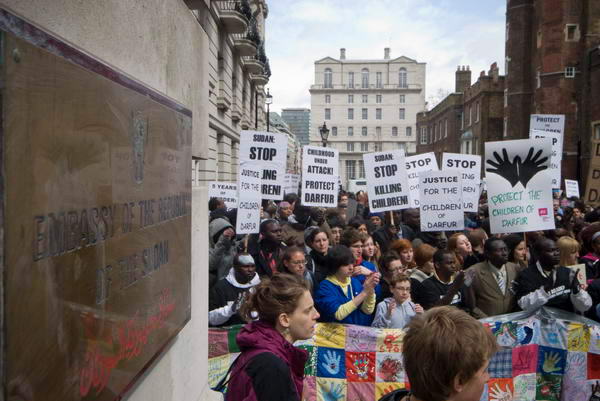
Sudanese Embassy
This shot, with the 12-24mm, manages to show that the demonstration is taking place at the Sudanese Embassy. A little work with Photoshop would help to bring this out – but this is a simple development of the RAW file. Probably I could have improved it a little while I was taking the image, but I had to stand on top of a wall with a rather long drop down to cellar level in front of me, the kind of situation that always leads me into a bad case of the shakes. I’ve just no head at all for heights – I blame it on my father taking me up with him on roofs where he was working when he had to look after me when I was a very small child.

But the wide angle has let me put together the brass plate and the demonstrators, and the perspective on it brings in the eye to the demonstration. I’d have preferred it to be wider to show more of the demonstration which stretched roughly twice as far across the street.  Although this was only at 24mm, it is tolerably sharp from the Y of Embassy to infinity, depth of field being a great advantage (usually) in wide angle shots – this one at f13.

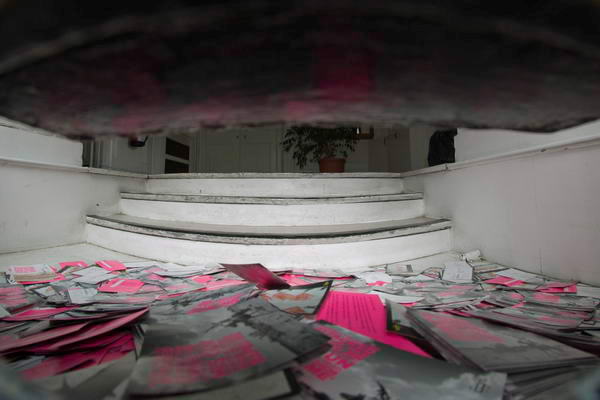
Shortly before I’d poked the 10.5mm into the Embassy letter box, with this effect:

fisheye-ITfilter

Earlier I’d photographed people putting postcards through the door, and here they are in a pile on the floor inside., almost covering the area in front of the steps. Here I’ve used the Image Trends  Fisheye-Hemi 2 filter, followed by a slight crop. I couldn’t quite get the lens as far into the letterbox as I would have liked, but I think it still gives a decent effect.  The closest cards are really very close to the lens, and even the vast depth of field of the fisheye doesn’t quite cover.

The filter makes vertical lines straight, but leaves horizontals such as the steps with the curve that you see.  It is easy to remap to rectilinear perspective, but that seldom works unless quite severely cropped. The horizontal angle of view of roughly 140 degrees just results to too distorted a stretched effect towards the edges, and much of the image is lost when the remapped image is cropped to rectangular. You also get a drastic loss of quality at the edges and corners where there are simply not enough pixels to give a good result.

You can also try remapping fisheye images with the Panorama Tools plugin (particularly using the PSphere projection) or RectFish although this latter is perhaps better for circular fisheye images. Another alternative – and a great way to deal with distortion in all normal lenses, is PTLens.

The Darfur Protest pictures include a number taken with an ultra wide or semi-fisheye lens – as well as those taken with longer focal lengths. These things are useful tools, but can’t do everything you might need to do.

Getting Your Images Right with Lightroom

Although I’ve heard some unfavourable comments about its RAW conversion, particularly with some recent cameras such as the Nikon D300, I have to say that Adobe Lightroom is now the program I use for virtually all of my image handling. With the Nikon D200 I’ve generally found I’ve preferred the jpegs and tiffs I’ve produced using it over those from Capture One, the alternative software I have on my main computer, although both programs have their strengths.

Before Lightroom, I relied on Pixmantec’s software – and although I was very disappointed when Adobe bought out what was manifestly a superior product, it did get me a free cross-grade to LR, and I think some of the superior Pixmantec technology has been incorporated into LR.

LR’s big advantage is workflow and the way that it integrates the various stages in handling images, copying them from the card to appropriate locations (once you learn how to set these up,) making backups, adding copyright information, keywords and other metadata and the output of standard image sizes and quality for different purposes.

There are still things I’m sure I’m missing in some of these areas, and the software is perhaps still evolving. I’ve been particularly disappointed when I’ve actually paid money for tutorial material on LR to find it gives me no more clues about these aspects than the free and also fairly unhelpful material from Adobe and elsewhere.

Much of it is still dealing with earlier versions of the software and there are some very important differences. Although I don’t rush to install the very latest version immediately it appears (it makes sense to wait at least a few days while others suffer the bugs – as with the recent 1.4 release that Adobe had to recall within a few days), there is really no reason to be using anything other than version 1.3 at the moment.

Certainly there is no excuse for still selling books and downloads that still deal with earlier versions than 1.3, and even where information is free of charge it would be appropriate to update.

Many people find the development stage of LR confusing, and it took me quite a while to work out some of the important aspects. I hope you will find my approach of some use, though I’m sure others will have their own tweaks on the process. There are whole aspects of it I’ll omit, which I think are of rather specialised interest.

DEVELOPMENT USING LIGHTROOM 1.3

Development Presets and Panel Set-up

I set the following defaults in the ‘Detail’ section:
Noise Reduction: Luminance 2, Color 25
Sharpening: Amount 2, Radius 1.0, Detail 25, Masking 0

(One of the libraries I send pictures to states ‘no sharpening‘ and this is my ‘no sharpening’ setting. You may find different values for this and noise reduction better suit your needs. Serious noise reduction on high ISO images and also sharpening for particular output purposes are best performed by Photoshop plugins.)

Lightroom Develop panelThese and other default settings, including Autotone, Medium contrast curve and Presence settings can be saved in a development preset and automatically applied during image input. I find applying a suitable preset including autotone essential in allowing me to rate images from a shoot immediately after input, deleting any that are unusable, and deciding which are worth keeping and which of those I need to bother to process straight away.

LR makes this easy. The Delete key, then D gets rid of the unwanted, and number keys rate 1 for keep, 2 for process. When I’ve gone through the set I can then choose to display only those images with ratings of 2 or more and get down to development.

You can then keep most of the panels in the development panel closed. Those essential to have open are the Histogram, Basic and Lens Correction. You can Right Click on the panel and uncheck the others to save having to scroll on the Development panel, I also like to keep the Tone Curve in the panel but closed as I occasionally find I need to use it. So the right hand edge of my screen now looks like the image at right.

Development

If you haven’t got a good screen set up using a monitor calibration device such as the Pantone i1, rush out and buy one before you try to process another image. Without doing this, you are wasting your time trying to get images right as you have no way of knowing if they are correct or not.

1. Color Balance

Check visually for colour balance, and, if necessary adjust either using the two sliders or by using the eye-dropper on a neutral in the image. A lot of photographers bitch about colour balance (and this week’s BJP even suggests the problems they have are an important reason why it’s now trendy to have black and white weddings) but I think we’ve never had it so good. The D200 certainly gets it spot on using auto white balance about 98 pictures out of a 100 for me. Perhaps you other guys are using the wrong camera!

2. Remove Chromatic Aberration

Zoom to 3:1 (T toggles the Tool bar.) Look for a high contrast edge as close to the edge of the frame as you can find, and click to zoom in on it. Examine for any chromatic aberration – and most zoom lenses have plenty. Start by moving the slider which controls the most apparent colour – for example if you see red and green fringes use the red/cyan slider, shifting it until the fringing looks blue/yellow – then adjust the other. Generally you will see a distinct change in colour as you go through the correct point, but you may find that some compromise is needed, as vertical and horizontal edges may require different settings.

If you have significant colour fringing you can try the Defringe setting. This sometimes seems to work, but other times appears to have absolutely no effect.

3. Vignette
Click to go back to full image view and decide whether altering the vignetting will improve your picture. Use the J key to turn clipping on and off. (If your import preset didn’t include Auto Tone, use it now.)

Most lenses vignette to some extent naturally, but as in black and white printing, many colour images are improved by a little vignetting which helps to stop the eye wandering. But for most purposes it should not be obvious.

Reduce the Recovery level set by the auto tone to zero so you can see how vignetting can help with highlight clipping. It usually provides the best way to deal with over-bright skies (assuming you exposed so they didn’t entirely burn out.) Don’t worry too much if this makes the lower edge areas of the picture too dark, with some blue clipping. Usually its best to use relatively moderate negative amounts of vignetting and move the midpoint slider more to the left to avoid an obvious vignette. If any highlight clipping remains, click the auto tone button again.

4. Examine the histogram
Generally you want no gaps at either end of the histogram but the curve should slope down to zero exactly at each end. The example shown above is just about OK at the highlight (right end) but shows a little clipping at the shadow end. In practice a small empty gap at the highlight end isn’t a problem and is necessary with some images, but any gap at the shadow end will usually make images look ‘weak’.

5. Adjust Highlight end of Histogram

If there is any highlight clipping, reduce the exposure setting to remove it. Aim to get the curve just going down to zero at the extreme right. In general it seems best to use the lowest Recovery setting you can to get this, almost always less than the ‘auto’ result. Don’t worry if the image looks too dark, get the histogram right.

Don’t worry about small specular highlights – such as reflections of the sun or your flash on metal or glass surfaces. They may be vital to give your picture some ‘sparkle’ but otherwise if they need to be removed this is a matter for retouching rather than development.

6. Adjust Shadow end of Histogram

This step, which gets the blacks right, is generally simple. Change the black setting until the histogram appears to come down to zero at the left edge. There should still be some small areas of blue clipping shown on the image, and you can remove all except those for the deepest black shadows by increasing the fill (usually if not always left at 0 by Auto tone.) In my example this meant reducing Blacks to 4 and adding a Fill Light of 7.

7. Adjust the brightness and contrast

Aim simply to to get the image looking right – and this is a matter involving judgement and taste. If you have used large values of Fill or Recovery you are likely to need to increase contrast, but otherwise I find the values set automatically are often just a little high.

8. Fine Tuning
If you make large changes to Brightness in particular you may find you need to go back and change some of the other settings, basically another iteration of the process that started in step 4. Altering most of the ‘Basic’ settings can lead to changes that mean you need to do a little fine tuning on others, but the order I’ve listed them here seems to have a cetain logic that makes things easier to understand.

9. Dust and Red-Eye
Unless you have dust spots that need (N) removing or red-eye that needs correction, that’s it – your image is ready for output.

=====================

All that took quite a lot of writing, but it takes less than a minute to carry it out on a typical image. If you have a series of similar images, you can of course use the ‘Previous’ button to apply the same settings when you look at the next image, which is a good time-saver, even if the result is not exactly correct it is often simply a matter of altering the exposure.

Peter Marshall
Druid Spring

Tower Hill

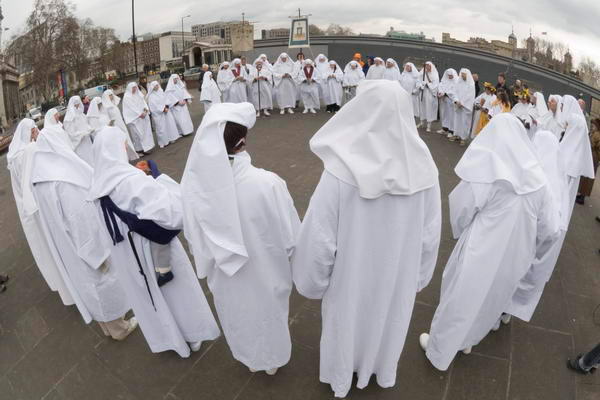
Easter weekend has been long and busy for me and I’m only now beginning to catch up. Thursday was the start of Spring, marked this year with biting northerly winds, threats of snow and some bouts of cold driving rain.

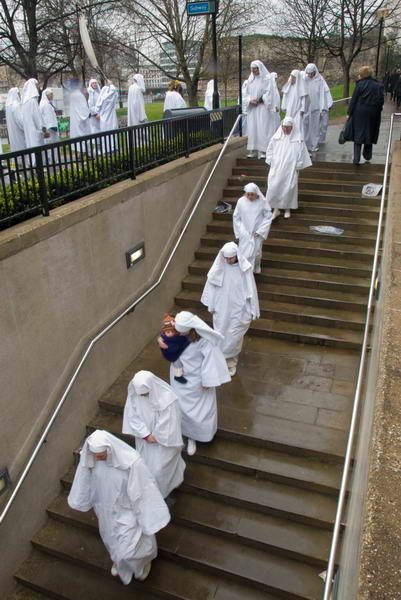
The Order of Druids were lucky that the rain held off until the end of their Spring Equinox celebration at Tower Hill, but their long file back to their starting place was through the rain.

Through the subway

As always when photographing in rain, it was hard to avoid the odd drop on the front of the lens, giving some diffusion – as you can see in a couple of areas of this picture. With a wide-angle lens, you can’t use a lens hood that will effectively protect against rain, and when the wind is sweeping the rain fairly close to horizontal umbrellas are tricky to hold and rather ineffectual. Working without an assistant they get rather in the way in any case.

Like most photojournalists in similar conditions I work with a microfibre cloth or chamois leather, wiping the front of the lens at frequent intervals and keeping the cloth balled in front of the lens with my hand in front of it when not taking pictures. But there is still the second or so when you actually frame the image for the rain to descend.

At such times I always think of the Martin Parr book, Bad Weather, in which he sought out the effects of water drops on the lens, flash bounce from rain and snow and more, often working with an underwater camera for the purpose. Interesting though the pictures are, I think few editors would have the vision to see it in his way. But perhaps the main thing that makes the pictures I took of the Spring Equinox this year differ from those I made last year is the weather. There is after all something timeless about the Druids, whose origins stretch back into the deepest ancient history even if the particular order I was photographing was only inaugurated for the Autumn Equinox at Primrose Hill in 1717!

More Camera Porn

One of the problems I seem to be getting more and more is a failure of autofocus on my Nikon D200. In the old days of course we all focussed manually, but this is actually a lot harder with modern cameras and lenses. We used to shoot mainly with fast (or fast-ish) primes – my standard SLR kit included a 28mm f2.8, 50mm f1.8, 105mm f2.8 and 200mm f4, but nowadays that whole set is usually replaced by a 18-200mm f/3.5-5.6 which goes a bit further as well as filling all the gaps (and weighs about the same.) Larger apertures means brighter focussing screen images – and a more decisive ‘snap’ in and out of focus. And of course the smaller sensor – and thus smaller focussing screen also dims the image.

Factor in too my age and dimming eyesight, along with rather poor manual focus rings on modern autofocus lenses and manual focus for me now tends to be for emergencies only when I’m working with a DSLR. Generally I rely on autofocus, but one of my problems is perhaps that the D200 seems to have so many options. I have to admit that I’ve only intentionally used a few of them – perhaps some of the others would be more suitable.

There is a nice switch on the front left of the camera, at the bottom of the lens box, which has 3 nice, straightforward settings, labelled C, S, and M for continuous, single and manual. The only problem I have with this is that it’s too easy for us compulsive button-fiddlers to move it to the wrong setting – particularly manual, and its then possible, especially in poor light, to take lots of out-of-focus pictures before you notice.

Then on the back is another less scrutable 4 position lever, with icons that could mean anything. The only one I really understand is square braces inside square braces, which stands for ‘Single Area AF’ and means the camera focusses using the focus area you tell it to (and is indicated in the viewfinder.) It was perhaps not the best choice for the chaos outside the Chinese embassy, as the manual indicates it best suits static compositions where the subject stays in the selected focus area.

Perhaps I would have been better off with ‘Dynamic Area AF’ which can use focus information from other focus areas, but doesn’t indicate it is doing so, or with ‘Group Dynamic AF’ or even ‘Dynamic Area AF with closest subject priority’, but unfortunately I didn’t have the manual with me to weigh up the options (page 54) though it would certainly have let me identify the icons (I’d find say S, D, G, C much easier to remember.)

Of course, once you’ve assimilated all that there are a number of custom functions related to all this – a1 to a10 – and given a few hours I might sort out the best combination taking everything into account. It would actually have been a lot easier just to get out the Leica and get on with the job, perhaps with that nice fast 35mm f1.4!

Actually I’m beginning to think that perhaps the D200 (or lens) may be in need of some kind of service, as well as casting my eyes more and more over the reviews of the D300. There’s a good one fairly recently appeared by Thom Hogan , one of the few reviewers on the web whose opinions I take seriously (one of the best-known others is really just a clown and believes that there isn’t a lot of point in shooting RAW – well perhaps there isn’t for the sort of pictures he likes to post.) Of course Digital Photography Review is pretty hot for the technical kind of stuff (so far as they go) and they’ve also recently reviewed the D300, but Hogan is a photographer who takes reviewing very seriously – even to the extent of taking cameras to bits. (One other guy worth reading is Sean Reid, but his site is a subscription site, and costs $32.95 per year – and well worth it if you have an interest in the gear he reviews.)

Hogan also writes extensive e-books on cameras, though I can’t tell you what they are like – when I was writing for what was then one of the most popular photography sites on the web I did write asking for a review copy of one, but never even got a reply! So I reviewed a couple of those from another author instead. But I suspect Hogan’s might be better.

One of the other things I didn’t write about when I was the guide to ‘About Photography‘ was so-called ‘glamour photography‘, although the reasons there were different, and one thing I don’t miss are the regular and frequent e-mails I used to get from several people in that sordid business telling me they were God’s greatest gift to photography and that I should be featuring them on my site. Frankly, it’s boring formulaic crap, and the slicker it is, the more boring.

Today I was reminded just how sordid it can be by a mention on ‘Conscientious‘ of a blog with a posting entitled How To Photograph Nude Women, For Free. I won’t give the link given there on this site, as I can’t think of any reason to recommend this to any photographer, but if you know any young women who might be thinking of becoming a model, I’d suggest they read it and beware. It really is the kind of thing that gives photography a bad name, and even makes the actual porno industry look respectable.

Ultimate Street Camera?

The Sigma DP1 is finally expected to be with us in April and, with a viewfinder will have a RRP of £600 (you’ll get a penny change.) Those misguided enough to buy it without the viewfinder will save £50, but are of course likely to suffer from excessive camera shake as they try to use a camera at arms length and will end up buying it later for £85.

Actually given it has the equivalent of a 28mm lens, those of us accustomed to such things might find that we can get as accurate framing simply by holding it at our eye and imagining the viewfinder, a technique I’ve found to be rather useful with my similarly handicapped Fuji F31.

Sigma has a special site with no more information about the camera but some better pictures and a long and rather annoying flash intro – whoever thinks anyone wants to sit through silly text floating around their screen. Here’s a link that will avoid the intro and just go to the main site which is still a rather bad example of  exactly how you should not use flash (and sort of makes me feel a bit sea-sick as it scrolls uncontrollably up and down – straight html does a rather better job.)

Many will also want the optional HA-11 lens hood, which takes a 46mm lens filter and adds another £20, and Sigma also list a matching external flash, AC adapter, battery charger and spare battery (the camera price includes a battery and charger, but as the battery only lasts roughly 250 pictures, keen photographers are going to need several to keep shooting for a day.) Other expenditure may include some fairly large capacity SD cards, as the RAW files are approximately 15.4Mb

The big advantage of the DP1 is its relatively large sensor, at 20.7×13.8mm a similar size to half-frame film, and roughly 10 times the imaging area of most compacts. The 2652×1768 pixels may seem low by current standards, but each of these records R, G and B making this roughly equivalent to a 14Mp Bayer array in a conventional sensor.

Foveon sensors such as this have so far not been good at above ISO 400, and the DP1 is likely to follow in this, and the highest available speed is ISO 800. It isn’t going to be a great available light camera as the lens is a relatively slow f4. However, so long as it performs well at full aperture it will be fine in normal daylight, and the use of aspherical elements is likely to help. The MTF chart in the pdf you can download looks reasonably impressive, although the -2.3% of distortion at close range seems a little high, it can always be corrected in software for the kind of subjects where it becomes important. The -1EV vignetting – also easily corrected by software – seems fine also.

Critical data missing from the spec sheet includes the shutter lag and the shot to shot time. As it can be set to manual focus, the autofocus speed isn’t too important. But assuming these are acceptable, this looks to be a good camera to carry with you, and with a weight of only 250g and a width 113.5mm, height 59.5mm and thickness of 50.3mm will sit easily in a hand held on a wrist-strap for immediate use. The 28mm lens is a good choice for general use, with the 14Mp allowing significant cropping if necessary.

Captioning Dreams

One of the consequences of age (along with diabetes, exacerbated by too many mugs of coffee staring at the computer screen) is that most nights I wake up around 4.30 am (yes, Alex*, AM does mean in the morning.) Fortunately after a short visit to the bathroom I normally fall quickly back to sleep. But this morning, I had a little shock as I woke, struggling as often out of a dream. I realised that my dream had been a kind of dream about a dream, in which I had been captioning each of its images for my pages at Alamy.

As contributors to Alamy will already know, each image submitted needs extensive key-wording, caption and description information, and it is a time-consuming process to add these, made more tedious as the system doesn’t match up well with the more standard IPTC meta-data. Yesterday I spent around 6 hours working on a batch of images submitted last month, so it’s hardly surprising that it was still at the top of my sleeping mind.

I’m not sure that my images will in any case sell from Alamy, as probably they are the wrong kind of subject matter for its customers, and those wanting my work are more likely to look elsewhere – perhaps in specialist libraries such as Photofusion, where I also have work. Or better still; come directly to me having found what they want in the 25,000 or so images on My London Diary. I do get plenty of requests to use images from there, but too few from anyone who can afford to pay.

The simplest approach to keywording would be to make use of a controlled vocabulary, and there are hierarchical lists available for import into applications such as Adobe Lightroom, for example, the Controlled Vocabulary Keyword Catalog or CVKC. I’m not sure that their listing would be particularly appropriate to my rather limited field of work, and until the libraries I work with adopt it, I don’t think it makes much sense for me to pay the modest dollar cost but much more significant time input to make use of it. However the site does have one of the best pages of advice on captioning images I’ve come across, of course starting from the basic “Who, What, Where, When, Why and How?” but with some other very useful tips.

But, as my dream showed, things can take over our lives. I’ve met many people who have said to me that they never take photographs, as they feel it makes them into observers and they would rather take a full part in what they are doing. It’s a view I have some sympathy with, but then there are plenty of events I’d rather observe than take part in.

But there are other occasions where photography is an important part of how I take part in things. It’s also important to me in preserving my own memory and sense of what happened. In the 1960s I threw myself into various things, and was too busy to take photographs. Now I find that it’s true that if you remember what happened you weren’t really there – largely because these were exciting times and too much was happening rather than substance abuse. All I have are occasional glimpses – being in a dressing room with the great master of the tenor sax, Ben Webster, came back to me a few weeks back (my job was to get him on stage able to stand, largely accomplished by drinking my share of the whisky he would otherwise have got through on his own. If he could stand he could play. And did, beautifully. I’ve never really liked whisky since.)

It wasn’t that I didn’t have an interest in photography. But in those years you either had to be extremely rich or devote hours of your time to the darkroom to be a photographer. I was penniless and already trying to fit more than 24 hours into every day. It didn’t help that my camera was still suffering from a rusty shutter after being dropped in the lake at Versailles, making speeds above an eighth of a second problematic and those below default to B. All in all I have little photographic record of those times to jog memory, one of my great regrets.

*Alex ten Napel, a fine Dutch photographer I met in Bielsko-Biala, Poland, left checking his travel arrangements home rather late. In the car when we were going to dinner to celebrate the end of the event, late on the night before we all left, he asked me “does AM mean morning?” And found he was booked to leave in a few hours on the 4.30am train. His portraits of swimmers, taken standing with them in the pool, were one of several highlights for me of the Foto Art Festival there.